
From an Idea to a Saved Video
Step 1: Choose a Starting Workflow
Decide whether the scene needs a text description, an opening image, mixed references, or timed keyframes. If you already have footage to change, begin with editing. Choose the path that communicates your most important requirement.
Step 2: Prepare the Material
Gather only the images, clips, or voice profiles that contribute to the scene. Identify the role of each reference in your prompt. For Keyframes, prepare images for the visual moments you need along the timeline.
Step 3: Configure the Scene
Match the duration to the amount of action, choose the composition and resolution, and describe any speech or environmental sound. Keep reference allowances and the selected mode in mind when arranging the inputs.
Step 4: Generate the Video
Read the prompt as a sequence the viewer will experience. Remove conflicting instructions, confirm the selected settings, and start generation. Wait for the completed output before deciding what the scene communicates.
Step 5: Download and Save the Result
Open the completed result and download the video using its result controls. Save a local copy in the folder or project where it belongs, with a name that identifies this scene and version.
Choose What You Want to Start With
Create from Text
Use text when you can explain the subject, action, setting, and camera without supplying an image. Write what happens in a clear order. A short scene with one important change is a better starting point than several locations and unrelated events in the same prompt.
Animate an Image
Start from an image when the opening composition matters. Describe what should begin moving, what the camera should do, and what should remain part of the scene. For a sequence of required visual stages, choose the separate Keyframes workflow and provide the intermediate or ending images as well.
Guide a Scene with References
Choose Omni Reference when different supplied materials have different jobs. One image might establish a person, another an object, and a clip a movement. Name those jobs explicitly. Do not ask every reference to govern the entire scene, especially when their lighting or setting differs.
Plan a Following Scene
Use continuation as a planning task when you need the next shot in a sequence. Decide what carries forward, what changes, and where the next shot begins. The announced native extension feature is marked coming soon in the official guide; do not rely on an available extension control or a two-minute result.
Edit Footage You Already Have
Start with the video you want changed and identify it as the primary footage. Describe the requested edit and the details to retain. Editing supports up to five clips including one primary video; clips are individually 3–30 seconds and share a 30-second total with other video inputs.
Prepare Inputs That Have a Clear Role
Write a Subject, Action, and Setting
State who or what appears, what happens, and where it happens. Give a movement a destination or purpose: a person crosses a platform to meet someone, rather than simply walking. Add the camera's role only where it helps reveal the action. Avoid several competing camera movements in one brief moment.
Decide What an Image Establishes
Use an image to communicate something difficult to describe precisely, such as a character's appearance, a product, or an opening view. Say which aspect matters. A reference to clothing should not accidentally become a request to copy an unrelated background or pose from the same image.
Give Keyframes a Progression
Arrange the opening, intermediate, and closing images in story order. Explain what should happen between them, including important changes in position or expression. Keyframes uses images rather than a mixed reference collection, and the first uploaded image determines the aspect ratio. Make that first composition fit the intended screen.
Assign Reference and Voice Roles
Describe which material provides a person, object, movement, or voice. Remove material that conflicts with those roles or contributes nothing to the action. A voice profile guides a speaker, not background music or sound effects. Describe the surrounding sound in the prompt and assign dialogue to identifiable characters.
Configure Timing, Picture, and Sound
Choose a Duration the Action Can Fill
The main model supports 3–30 seconds in one-second increments. Choose enough time for the important action and its ending, then remove events that make the scene rushed. A camera reveal and a reaction need breathing room; a simple object movement may need less. Flash is a different option, limited to 20 seconds at 720p.
Place the Key Visual Moments
Keyframes supports up to 10 images. Use them for moments whose appearance needs direct visual guidance, and describe the action connecting them. Do not load Omni references into the same generation: the two modes are separate. Flash does not support first-and-last-frame or multiple-keyframe generation, so it is not the choice for this workflow.
Keep References Within the Shared Allowance
Omni permits up to 15 assets in total, with category limits of 10 images, 5 videos totaling 30 seconds, 7 elements including 3 video elements, and 3 voice profiles. These are overlapping limits, not quantities to add together. Video references, editing clips, and video elements share the video allowance. Keep the smallest set that clearly communicates the scene.
Set the Picture for Its Destination
Main-model output choices include 720p, 1080p, and 4K, with 21:9, 16:9, 1:1, and 9:16 compositions; Omni also provides Auto. In Keyframes mode, an uploaded first image sets the ratio. Choose resolution and composition separately. The official guide marks 10-bit HDR as coming soon, so a 4K selection should not be treated as an HDR guarantee.
Describe Dialogue and the Soundscape
Write short lines with clear speakers, then describe the environmental sound around them. The model supports two-channel stereo and voice-profile guidance. Keep a speaker's words distinct from instructions about their delivery. A room tone, approaching vehicle, or sudden silence can establish the scene without asking every visible object to make a separate sound.
Submit a Scene You Can Understand
Read the Scene Once Before Starting
Make sure the ending follows from the opening and the selected duration fits the action. Check which mode you chose, what each input contributes, and whether reference limits overlap. The prompt supports up to 8,000 tokens, but a longer prompt is useful only when the additional detail resolves a real creative choice.
Start One Generation
Submit the prepared scene through the creation controls. Avoid submitting the same request repeatedly just because the output has not appeared yet. The generation must finish before a result can be assessed. No fixed waiting time follows from the clip length, resolution, or a model specification.
Look for the Completed Output
Open the returned video when it is available and watch the whole scene, including its final moment and sound. Decide whether it reaches the intended ending and whether reference roles are understandable. A completed result is the output to save; another prompt or edit is a separate creative decision.
Download and Keep the Completed Video
Use the completed result's download controls to save the video to your device or project location. Give it a scene and version name rather than leaving several outputs indistinguishable. Keep the prompt and source references with the project when they are needed to understand the creative choices. Download format, watermark treatment, and server retention are separate service details; do not infer them from a model's resolution specification. Saving the file completes the basic workflow. A later edit or following shot can build on this saved result without becoming a condition for finishing the first scene.
Optional Work After the First Result
Plan the Next Shot
Identify the detail that links the next shot to the saved scene: a character, an object, a direction of movement, or a sound. Describe the next opening and ending as a new scene. Native extension to longer videos is announced rather than an available workflow here; planning a following shot does not promise automatic continuity or a two-minute output.
Request a Specific Edit
Use the saved or original footage as the editing source when the scene is close to what you need. Name the requested change, such as a different background or expression, and the details to retain. Compare the returned result with the source when continuity matters. Keep the source file so a later edit does not depend on recovering an earlier version.
Five Prompts You Can Adapt
Example 1: A Product Revealed by a Moving Light
Task: Create one product-focused shot with a clear reveal.
Starting material: A product reference image showing the object's appearance.
Prompt: A compact table lamp stands on a walnut desk in a dark study. The lamp turns on, revealing the grain of the wood and an open notebook beside it. The camera slowly moves closer and stops as the pool of warm light becomes the center of the frame. Keep the lamp's shape and finish guided by the supplied product image. A quiet room tone and the soft click of its switch accompany the action.
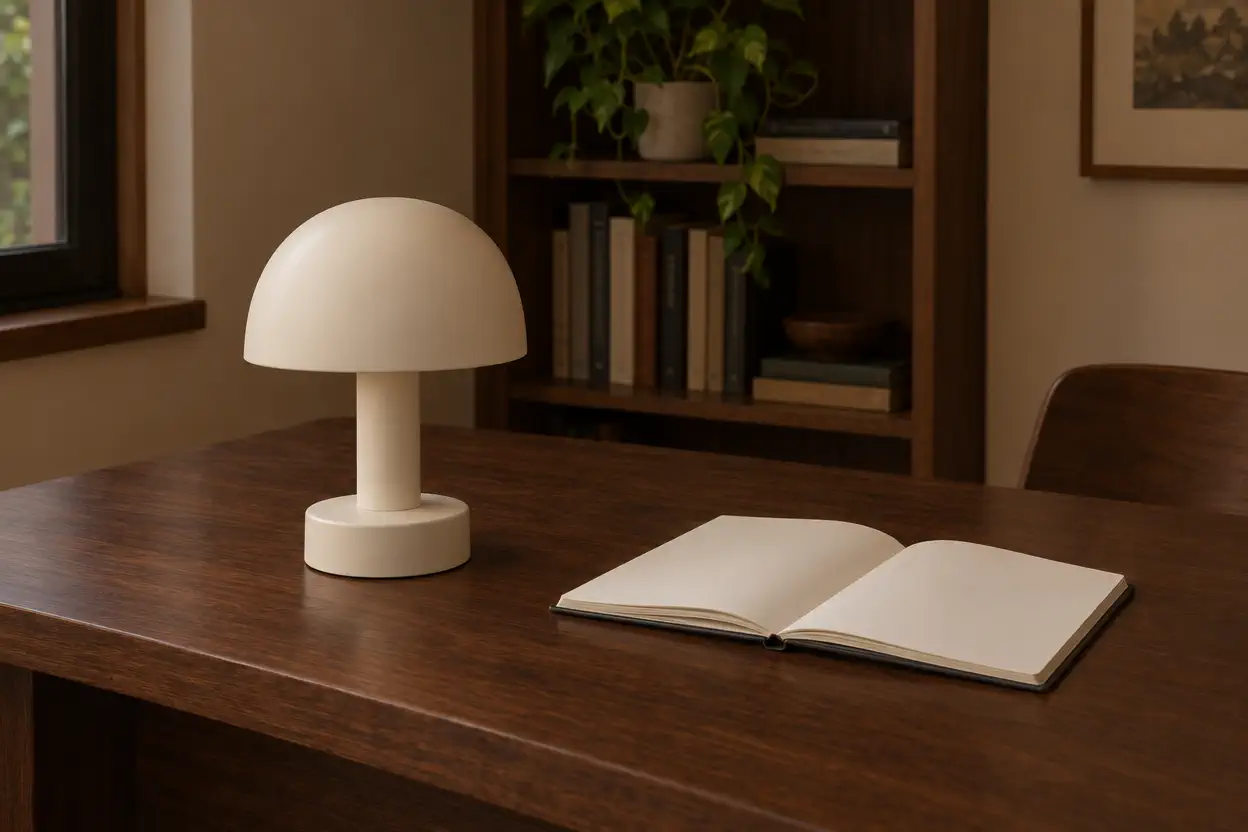
Why it works: The image has one role, the action changes the scene, and the camera stops at a defined ending.
Example 2: A Vertical Street Scene
Task: Plan a scene for a phone screen.
Starting material: A text prompt and a vertical composition.
Prompt: In a narrow morning street, a bicycle courier waits beside a blue door. A curtain lifts in an upstairs window; the courier notices it, smiles, and pushes off down the street. The camera follows from behind at walking height, keeping the courier centered in the vertical frame. Bicycle wheels and distant shop sounds establish the morning atmosphere. End as sunlight catches the courier turning the corner.
Why it works: The subject stays inside a narrow frame, and one noticed detail motivates the movement.
Example 3: A Reveal Between Keyframes
Task: Connect planned visual moments into a short narrative.
Starting material: Opening and ending keyframe images of the same room.
Prompt: Connect the opening view of the empty music room to the final view with the pianist seated at the instrument. A person enters from the right, sets a folded coat on the chair, and sits at the piano. Keep the camera facing the window as the movement unfolds. The final gesture is a hand resting above the keys. Use footsteps and the faint movement of fabric; the music has not begun.
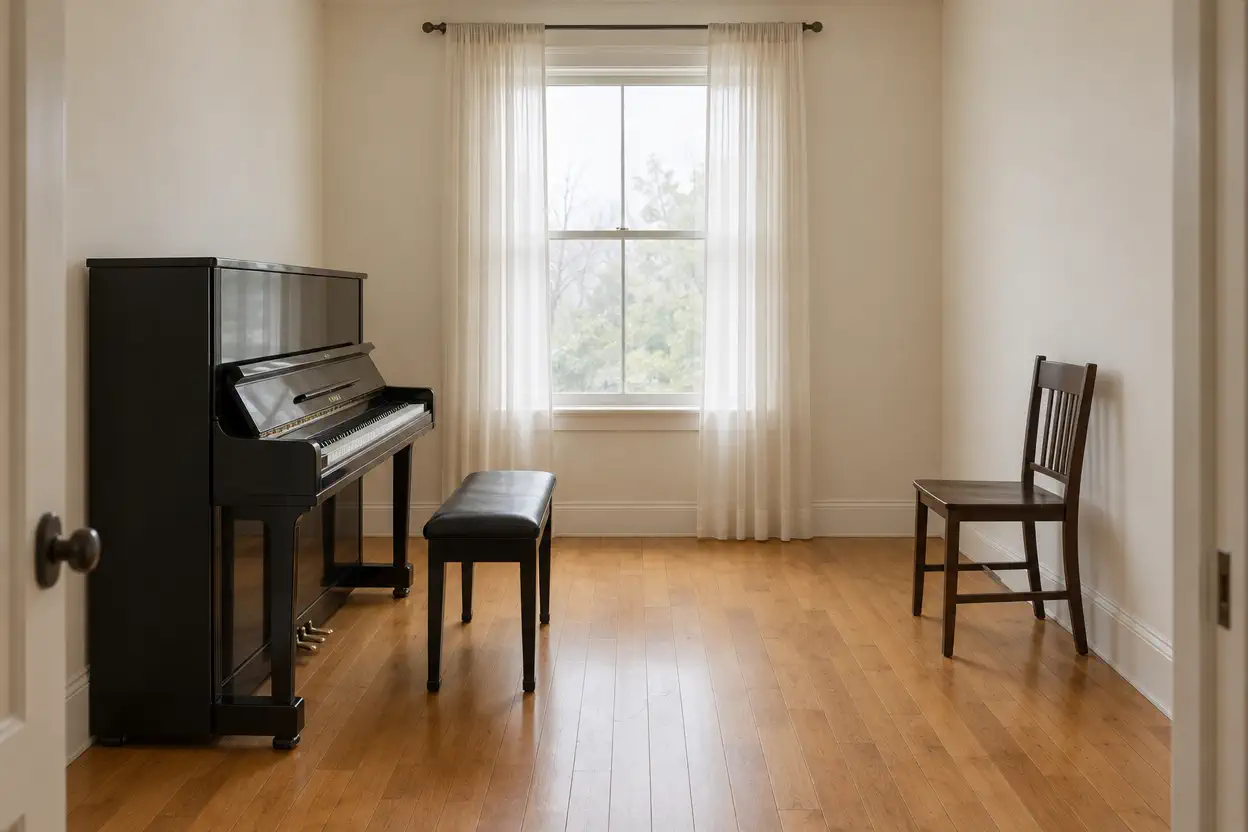
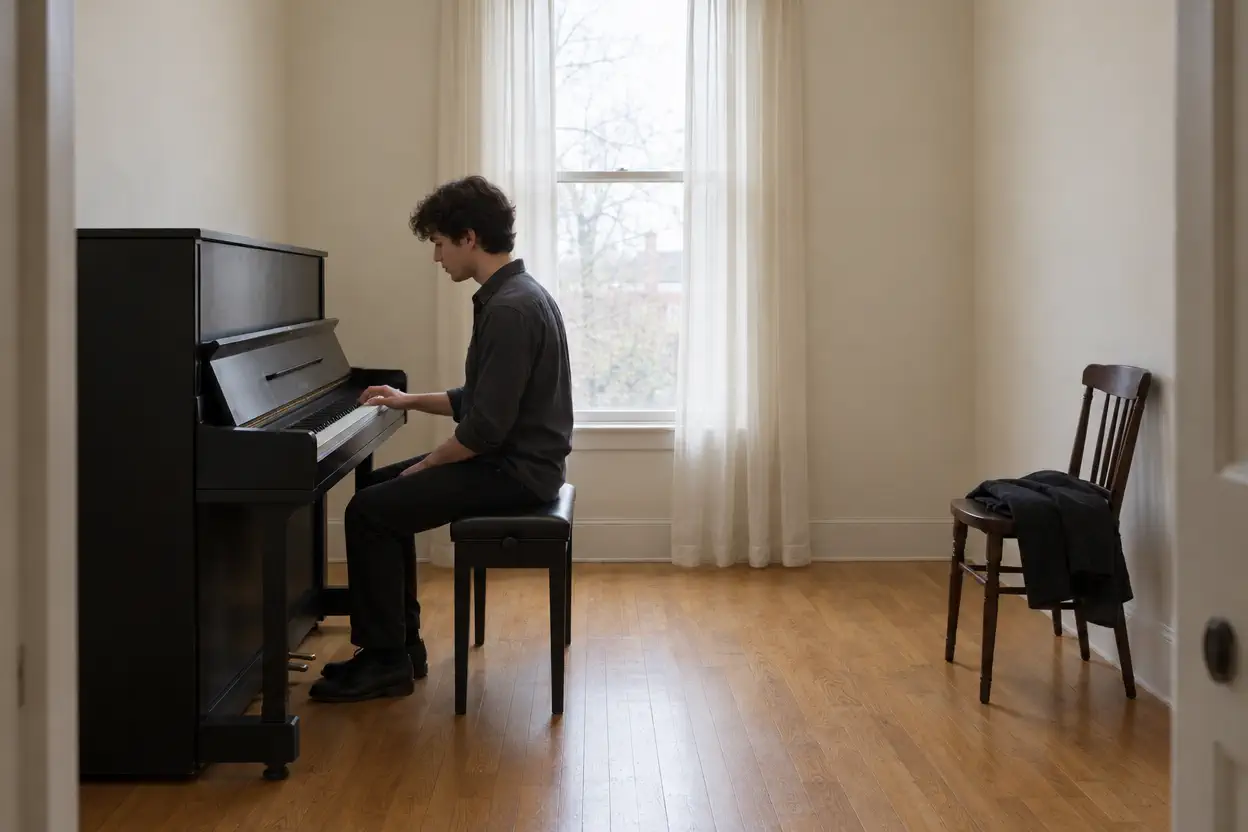
Why it works: The supplied images establish visual endpoints; the prompt explains the action between them rather than restating their appearance.
Example 4: A Short Exchange in a Diner
Task: Combine two speakers with reactions and environmental sound.
Starting material: Character images and appropriate voice profiles in Omni Reference.
Prompt: Two friends sit opposite each other in a nearly empty diner at night. The person nearest the window says, 'You kept the ticket.' The other looks at the paper on the table, pauses, and replies, 'I thought we might still go.' Hold a medium view of both people, then move closer to the ticket as the reply ends. Their voices are quiet; a refrigerator hum and rain on the window remain in the background.
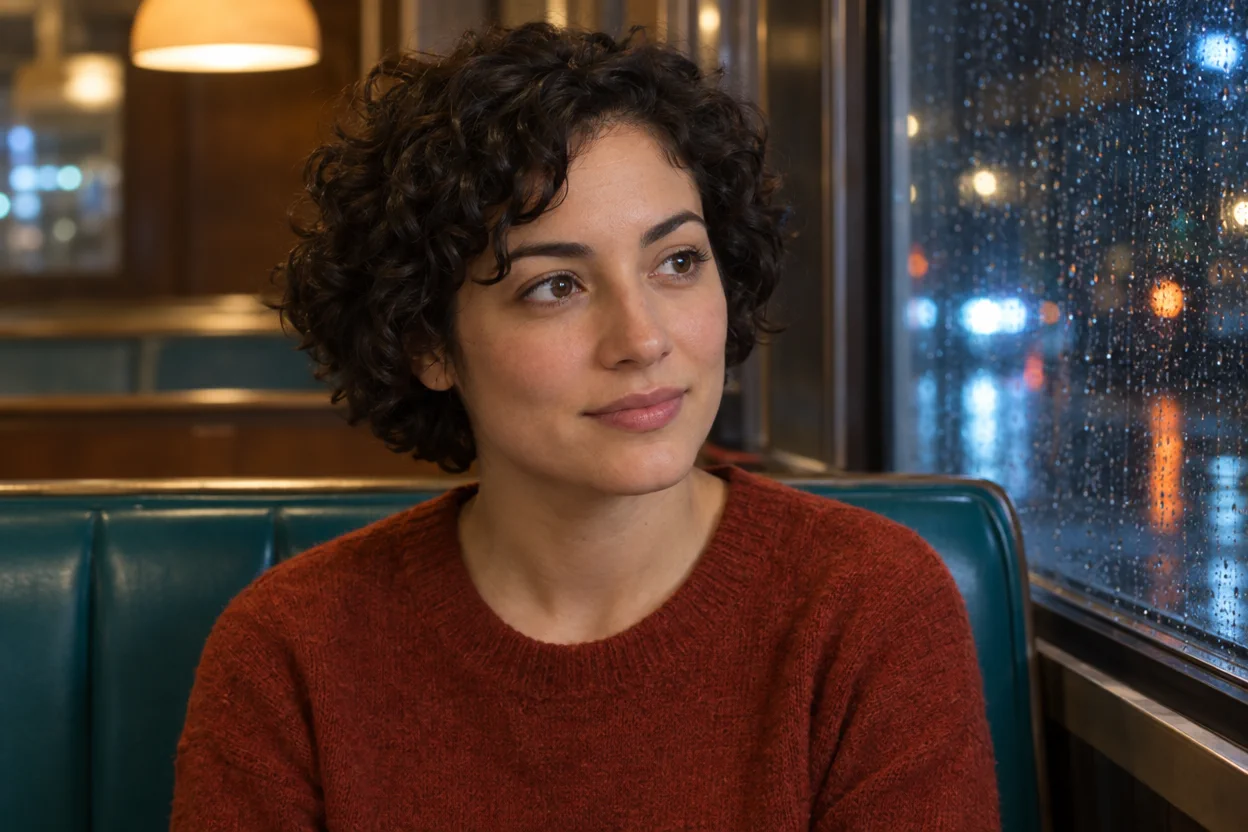
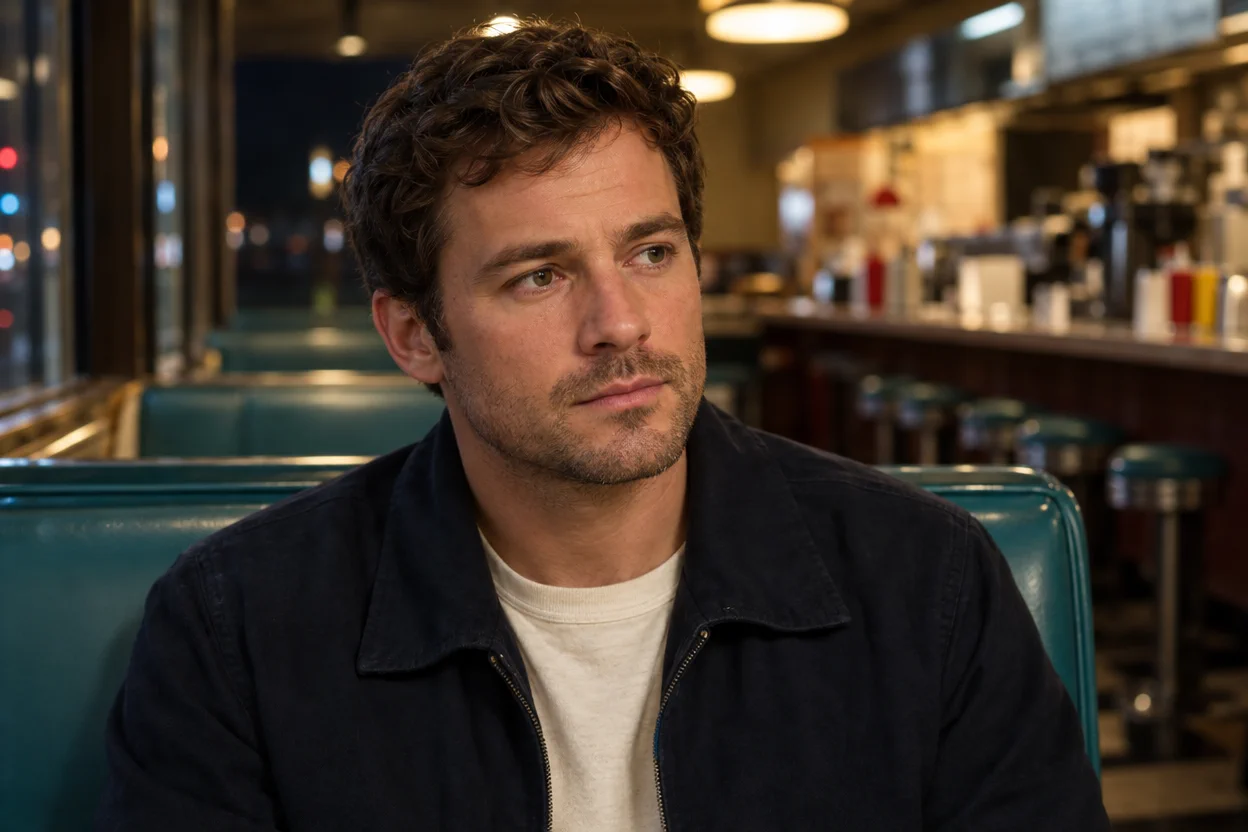
Why it works: Named positions connect each line to its speaker, while the ticket gives the camera and final moment a purpose.
Example 5: Change a Scene's Background
Task: Request a local edit while stating what should remain.
Starting material: Existing primary footage of a person standing beside a railing.
Prompt: Change the background behind the person and railing to a misty harbor at dawn. Keep the person's clothing, their position beside the railing, and the timing of the existing turn toward the camera. Use cool, diffuse morning light so the new setting feels coherent with the scene. Preserve the original camera movement. The harbor has distant water and a low boat engine in the soundscape.
Why it works: The requested background change is separate from the subject, action timing, and camera movement to retain. Those instructions guide the edit without guaranteeing exact preservation.
Fix an Unclear Request
The Scene Contains Too Much Action
A clip that rushes through several events may have more action than its duration can support. Choose one central change, remove unrelated events, and give the ending time to register. A longer available duration can help when the events genuinely belong together.
The Wrong Reference Seems to Guide the Scene
When several materials have unclear roles, the prompt may not communicate which detail each should influence. Name the character, object, or movement supplied by each reference. Remove an input whose background, pose, or style conflicts with the scene you want.
The Frame Cuts Off an Important Detail
The composition may not match the destination, or a first keyframe may establish a ratio you did not intend. Prepare the opening image for that screen and keep important action away from its edges. Describe where the camera should stop as well as how it should move.
Dialogue Is Hard to Follow
Long lines, unclear speaker assignments, or several simultaneous actions can make the intended exchange difficult to communicate. Shorten the dialogue and identify the speaker for each line. Keep environmental sound subordinate to the conversation when the words carry the story.
An Edit Changes More Than Expected
A broad instruction can leave the requested change unclear. State the element to change and name the important details to retain. Keep the original footage and compare the result with it. Preservation guidance may improve the request, but it does not guarantee unchanged identity or motion.
Questions Before Your Next Scene
Do I need an image to start?
No. A text description can establish the subject, action, setting, and camera. An image becomes useful when a particular appearance or opening composition is important. Choose the input that communicates the scene clearly; supplying more materials is not a requirement for every idea.
Can I combine Omni references and Keyframes?
They are separate creation modes for a generation. Choose Omni when mixed reference roles are central, or Keyframes when timed visual moments matter most. Prepare the materials for that choice rather than treating all images and clips as one interchangeable collection.
Does a longer prompt make the result more accurate?
Length alone does not make instructions clearer. Use detail to resolve specific questions about action, appearance, camera, or sound. Remove contradictions and unrelated events first. A concise prompt with clear reference roles can communicate more than a longer one that asks for competing actions.
Can I use every reference category at its maximum?
The total allowance still applies, and video references, editing footage, and video elements share their video quota. Plan the materials together. Voice profiles also count toward Omni's total asset allowance; they are not an additional set outside that total.
What changes when I choose Flash?
Flash is limited to 720p and up to 20 seconds, without first-and-last-frame or multiple-keyframe generation. Use the main model when a scene depends on those visual controls or higher output choices. The model name alone does not establish a price or waiting time on this website.
Should I choose 4K for HDR?
Resolution and HDR are different choices. The official guide marks the 10-bit HDR upgrade as coming soon, even though it also appears in the specification table. Treat it as announced rather than available; a 4K output selection does not itself establish HDR.
How do I finish the basic workflow?
Download the completed video using its result controls and save it to the device or project folder you intend to use. That completes the basic creation task. A following shot or another edit is optional and should not replace saving the result you already have.
Where can I compare credit packs?
The pricing page lists this website's one-time credit packs. Purchased credits never expire. Pack size does not establish a generation count because the applicable model and settings determine consumption. Use the displayed packs to compare the credit quantity you want to purchase.
Put One Scene into Motion
Choose the moment your scene should end on, then prepare the words or images that lead there.